
Sky Glass IPTV App Download
Download and configure the Sky Glass IPTV app on supported Firestick and Android devices using the current installation route and code 5293334.
Current Downloader Code
5293334
Enter 5293334 in the supported Downloader app when following the current Firestick or Android installation route. Downloader codes can change when an application or destination is updated, so contact support if the code stops working rather than relying on an unknown APK source.
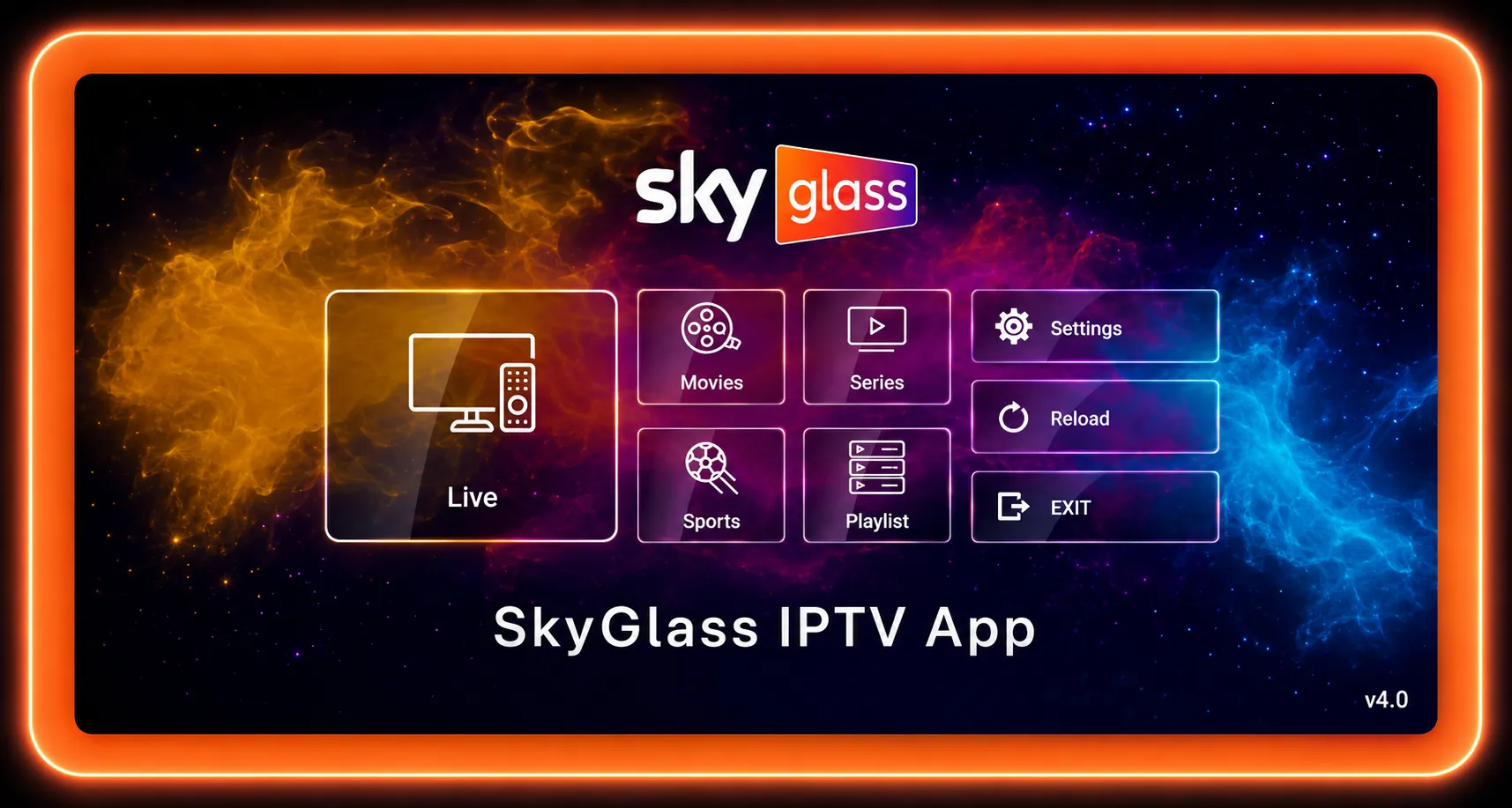
Sky Glass app download
For compatible Firestick and Android devices, the supplied installation route uses Downloader where supported. The current Downloader code provided by the source is 5293334.
Because application destinations can change, treat the code as a current installation aid rather than a permanent guarantee. If it stops working, contact support for the current supported route instead of searching random APK sites.
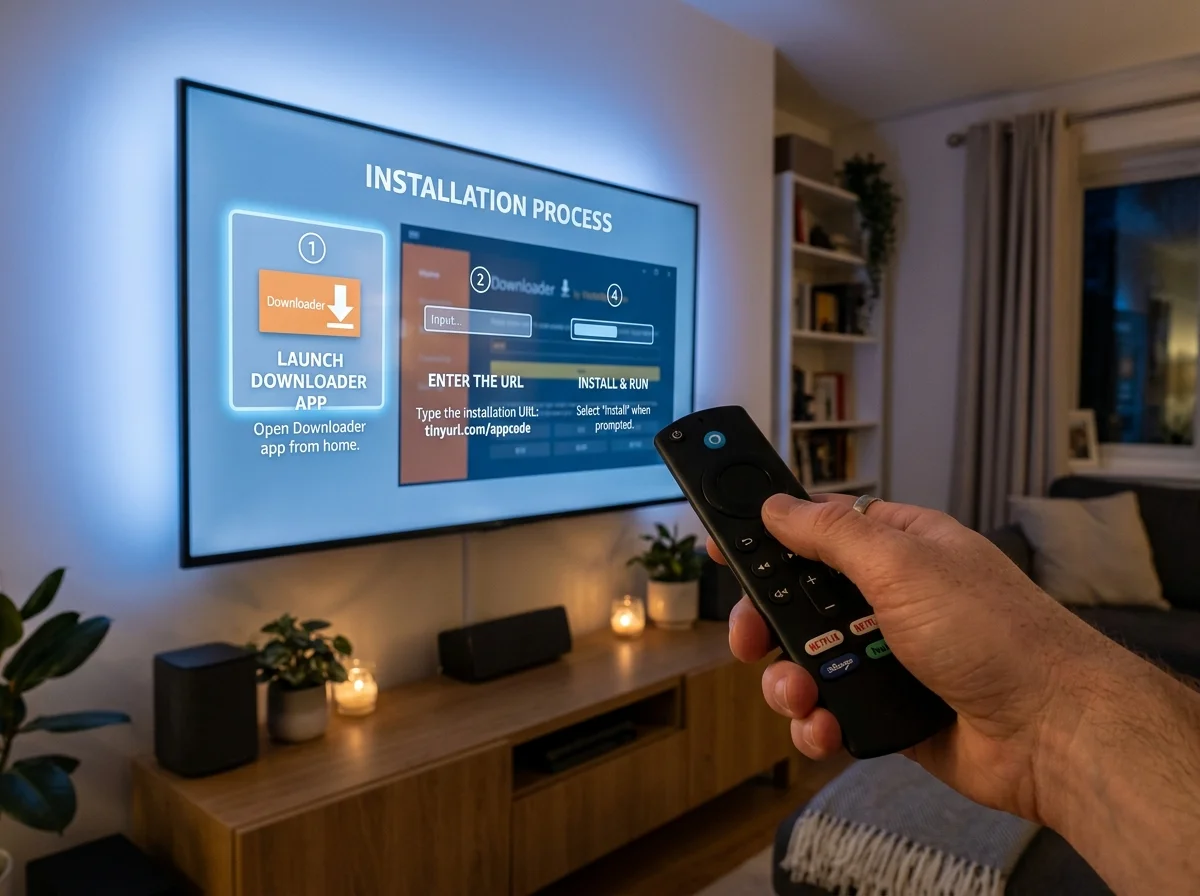
Sky Glass IPTV latest version
Version numbers change as the app is updated, so what matters is using the current supported application build and installation route for your device.
Why keep the IPTV app updated?
Keeping a compatible IPTV player current can help with:
- Compatibility improvements
- Bug fixes
- Updated device support
- Interface improvements
- Playback improvements
- Changes needed for newer device software
How to install the IPTV app on Android TV
On Android TV or an Android box:
Open the device settings and locate the relevant security or installation controls
Allow external installation only where required and only for a trusted source
Install or open a supported downloader or file manager
Use the current installation route supplied for your device
Install the IPTV application
Open the app and add your subscription details
IPTV app for Android mobile
For Android phones and tablets:
- Open the compatible IPTV player
- Choose the supported login or playlist method
- Enter the supplied username and password
- Add the M3U playlist or Xtream Codes information where required
- Allow the playlist to synchronise
- Use EPG, search and favourites where supported
Sky Glass IPTV app on Smart TVs
Smart TV app installation is separate from the Firestick/Android route. Samsung televisions use the Tizen platform on many models, while LG televisions use webOS. Use the application store and installation process designed for your specific TV platform.
Samsung Smart TV
Search the Samsung app store for a compatible IPTV player, install it and follow that application's activation procedure.
LG Smart TV
Use the LG Content Store to find a compatible IPTV player for webOS and then follow the player's setup instructions.
IPTV app on Apple, desktop, MAG and Roku
These platforms have different application ecosystems and setup methods. Always use the player designed for your platform and then enter the connection information supplied with the subscription.
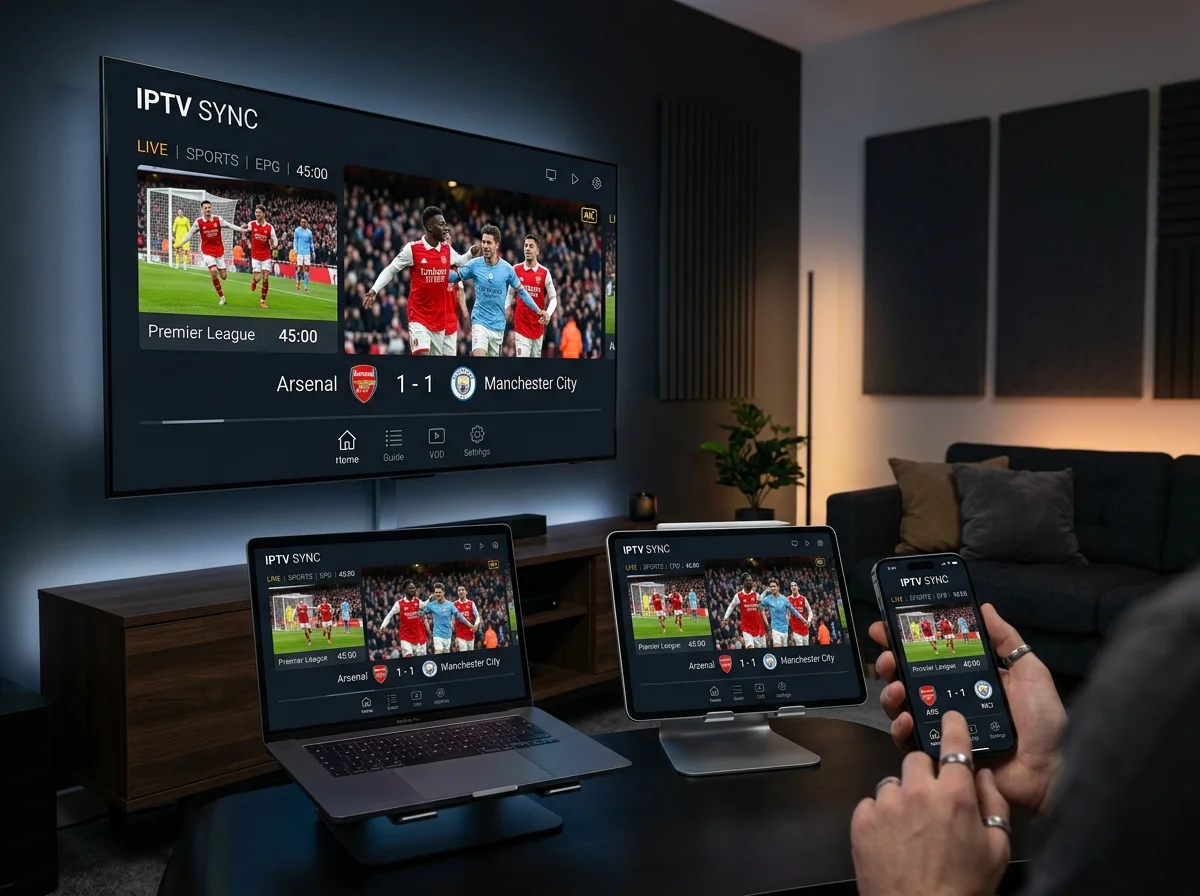
IPTV app for iPhone, iPad and Apple TV
Compatible Apple devices can use supported IPTV players. Depending on the player, setup may require an M3U URL, Xtream Codes, username and password or another supported connection method.
IPTV app for Windows and Mac
Windows and Mac users can choose a compatible IPTV application. An M3U playlist may also work with a player that supports network-stream playback.
MAG Box and Enigma2 IPTV setup
MAG and Enigma2 devices can use device-specific configuration. MAG may use a Portal URL and MAC address, while Enigma2 depends on the receiver model, image and plugin. Contact support if you are unsure which fields apply to your setup.
Roku IPTV setup
Roku uses its own operating system. Where a compatible IPTV app is available for your model and region, install it through the relevant Roku platform and use the supported login method.
IPTV app login and activation
Installing the application and activating the IPTV source are two different steps. The app provides the player interface; the subscription supplies the connection details and available content.
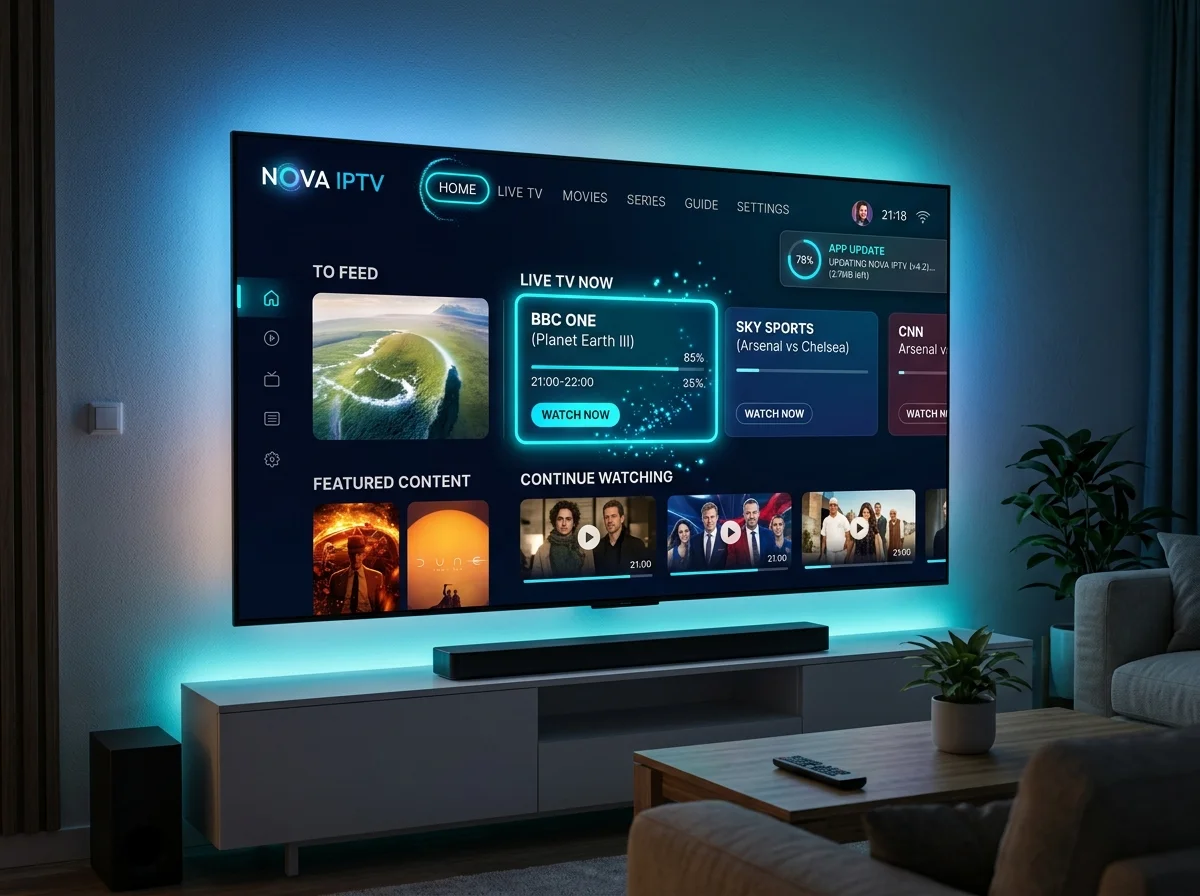
Xtream Codes
Xtream Codes normally uses a username, password and server URL. Copy each value exactly as provided.
M3U playlist
An M3U setup normally uses a playlist URL supplied by the IPTV provider. Paste the full address without changing characters.
Portal configuration
Supported MAG and similar devices can use portal-based configuration rather than an M3U or Xtream Codes login. Follow the device-specific instructions supplied for your account.
IPTV app system requirements
| Requirement | Recommended information |
|---|---|
| Internet connection | 20 Mbps minimum recommended |
| 4K/8K streaming | 50+ Mbps recommended |
| Android | Android 5.0 or later |
| Firestick | Fire TV Stick 2nd Generation or newer |
| Storage | At least 100 MB free |
| Connection | Wi-Fi or Ethernet |
| Ethernet | Preferred where available for demanding streams |
IPTV app troubleshooting
Most application problems can be narrowed down quickly by checking the installation route, device storage, login details and network connection.
Downloader code does not work
If 5293334 stops opening the expected destination, the installation route may have changed. Contact support for the current method rather than switching to unverified APK sites.
The APK will not install
Check available storage, internet access, installation permissions, device compatibility and whether an older version is already installed.
IPTV app keeps closing
Restart the device, clear the app cache where supported and check whether a newer compatible build is available.
IPTV login does not work
Check the username, password, server URL and account status. Remove accidental spaces from copied M3U or Xtream Codes information.
Channels are not loading
Confirm that the device is online, the subscription or playlist is active and the app has completed synchronisation.
EPG is empty
Restart the app, refresh the guide and allow time for EPG data to load. The EPG can only display information supplied by the connected service.
APK security best practices
Installing an APK outside a normal app store requires extra care. Use a trusted route, review permissions and protect your account credentials.
Verify the source
Use the official or trusted route supplied for the application.
Check permissions
Review application permissions and do not grant access that is unnecessary for the app's purpose.
Protect your IPTV credentials
Only enter usernames, passwords, server details and playlist URLs into applications you trust.
Remove unnecessary installation permissions
After setup, consider disabling external installation permissions if you no longer need them.
Scan APK files when appropriate
When an APK has been obtained separately, a reputable multi-engine security scanner can provide an additional check before installation.
Frequently Asked Questions
It is an IPTV player used to organise compatible live TV and on-demand playlists connected through an active subscription or supported source.
It is the Firestick-compatible IPTV player route described on this page. Supported installation can use Downloader and the currently supplied code 5293334.
Version numbers change as the app is updated. Use the current supported installation route and application build instead of an old APK.
For supported Firestick and Android installation, the current supplied route uses Downloader with code 5293334.
The currently supplied Downloader code is 5293334.
Yes. Supported Firestick devices can use the Downloader-based installation method described on this page.
An active IPTV subscription or another compatible IPTV source is required to load subscription content into the player.
Yes. Compatible Android TV and Android Box devices can use supported IPTV players or APK installation methods.
Compatible Samsung, LG and other Smart TVs can use an IPTV player where a suitable application is available for the television operating system. The Firestick Downloader method does not normally apply to Tizen or webOS TVs.
No. Samsung Smart TVs use Tizen rather than the Android-based Firestick environment, so the Firestick Downloader route is not normally applicable.
No. LG Smart TVs use webOS, so the Android APK route used by compatible Firestick and Android devices is not normally applicable.
A VPN is not required by the IPTV player itself. Whether you choose to use one is a separate privacy and networking decision and should follow applicable laws and provider terms.
The app page uses at least 20 Mbps as a baseline and 50+ Mbps for demanding 4K/8K streams. Other site guidance uses around 25 Mbps for HD.
Buffering can result from broadband speed, Wi-Fi conditions, device performance, stream quality or the IPTV source. Check the connection and restart the device first.
Important information
The Downloader code 5293334 is a source fact and should be updated everywhere at the same time if the installation route changes.
Use trusted application sources, review permissions and avoid random APK sites when a supported installation route is available.
Use IPTV services only where you have the necessary rights, licences or permissions to access the programming in your jurisdiction.