
IPTV Firestick UK
Learn how to set up IPTV on Firestick, install a compatible player, enter login details and troubleshoot common Fire TV issues.

Why use an IPTV Firestick setup?
Firestick is popular because it turns a television into a compact app-based streaming setup without requiring a separate traditional satellite receiver. It is also easy to replace or reset if you change players or update your configuration.
Easy IPTV setup
A Firestick setup can be completed in a few clear stages when the Fire OS version, IPTV player and subscription login method are compatible.
Internet streaming
The Firestick receives streams through your home broadband connection, so Wi-Fi quality and network stability are important.
Flexible player choice
Different players support different login formats. Select one that matches the credentials supplied with your IPTV subscription.
Live TV and on-demand
Where supplied, you can browse live television, sports, films, TV series, documentaries and VOD categories from one player.
How to install IPTV on Firestick
Follow these main steps:
Connect the Firestick to your television and complete Fire TV setup
Install Downloader from the Amazon Appstore where the supported route requires it
Install a compatible IPTV player
Enter the supplied username, password, server URL or M3U playlist
Allow the player to synchronise the channel list and EPG
Test playback and confirm the subscription is working
What can you watch with IPTV on Firestick?
The content visible in an IPTV player comes from the connected service, not from the Firestick itself. Depending on the subscription, common categories can include UK television, international channels, football, cricket, rugby, tennis, motorsport, boxing, UFC, films, series, documentaries and family entertainment.
Live sports
Use the sports categories supplied by your subscription to find football, boxing, cricket, rugby, tennis and other available events. Coverage can change, so check current availability instead of assuming that every event or league is included.
Movies and TV series
On-demand categories can include films, series, documentaries and box sets where supplied. The player provides the navigation; the active service determines the available library.
UK and international TV
UK viewers can browse the British or UK channel categories available through the subscription alongside international categories where offered.
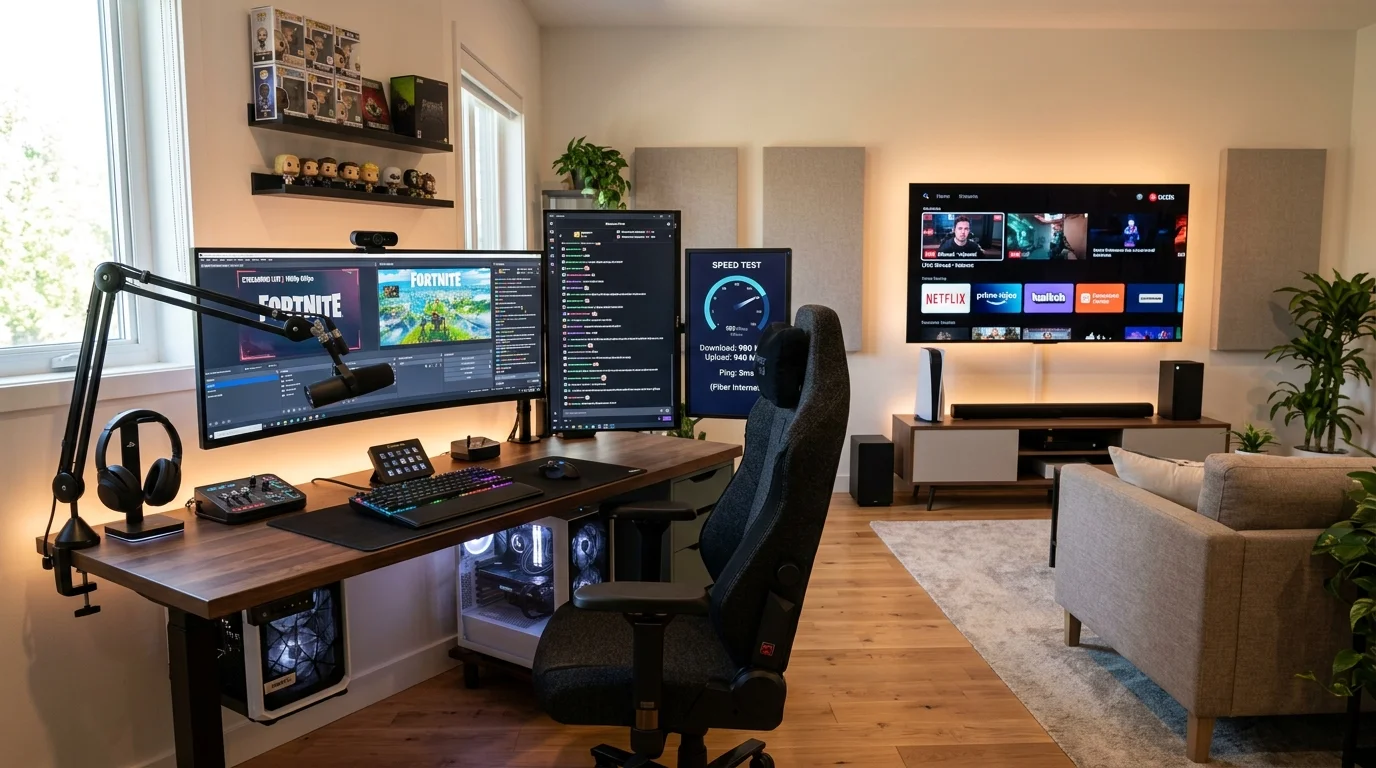
What internet speed do you need for IPTV Firestick?
As a guide, use around 10 Mbps as a starting point for SD playback, around 25 Mbps for HD and 50 Mbps or more for demanding 4K use. These are practical guidelines, not guarantees. Wi-Fi signal strength, network traffic, device performance and stream bitrate can all affect playback.
SD streaming
Around 10 Mbps can be a reasonable starting point for standard-definition streams, assuming the network is stable.
HD streaming
Around 25 Mbps is a practical target for smoother HD playback. If several household devices are using the same broadband connection, additional headroom can help.
4K streaming
Around 50 Mbps or more gives compatible 4K streams more bandwidth headroom, particularly on a busy home network.
How to fix common IPTV Firestick problems
When IPTV on Firestick stops behaving as expected, avoid changing several settings at once. Start with the simplest checks: broadband, Wi-Fi, the Firestick, the app and the login information.
IPTV buffering or freezing
Try the following in order:
- Run a broadband speed test
- Check the Firestick Wi-Fi signal and move closer to the router if needed
- Restart the router
- Restart the Firestick and IPTV player
- Reduce other high-bandwidth activity on the home network
- Test again before changing advanced player settings
IPTV player will not open
Restart the Firestick and try the player again. Check for Fire OS or app updates and confirm that the player supports your device model. If the application crashes repeatedly, review available storage and reinstall it using a trusted source.
IPTV channels will not load
Check the username, password, server URL or M3U playlist for typing errors. Also confirm that your subscription is active and that the device is online.
EPG is not updating
Refresh the programme guide inside the player and allow it time to synchronise. EPG availability ultimately depends on the information supplied by the connected IPTV service.
Frequently Asked Questions
IPTV Firestick means using an IPTV application on an Amazon Fire TV Stick to play supported live television and on-demand content delivered through an internet connection.
Yes. Compatible Firestick and Fire TV devices can run supported IPTV players and use connection methods such as Xtream Codes or M3U playlists.
Connect the device, install the required player, enter your supplied credentials, let the app synchronise the playlist and test playback.
Yes, on compatible Amazon Fire TV devices using a supported player and the subscription details supplied for the account.
Yes, the IPTV service normally needs a compatible player to load an M3U playlist, Xtream Codes account or another supported source.
Check broadband speed and Wi-Fi first, restart the router and Firestick, reduce competing traffic and test the player again. If the issue remains, check the stream or contact support.
Important information
Use only trusted and current installation sources for IPTV applications. Do not rely on random APK websites when a supported source is available.
Firestick model and Fire OS compatibility can change. Check the application requirements before installation.
Use IPTV services only where you have the appropriate rights or permissions to access the programming in your jurisdiction.
Sky Glass IPTV is not affiliated with or endorsed by Sky Group unless an official relationship is established.